
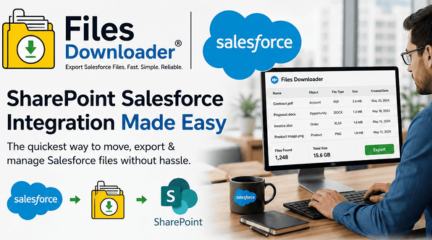
Salesforce SharePoint Integration: What It Is, How It Works, and What It Costs
FilesDownloader’s Salesforce SharePoint integration automatically pushes files from Salesforce records into a matching SharePoint document library, one-way, without manual downloading and re-uploading. It costs $200 as an add-on to the base plan, supports all file types with no size limit, and is best run in batches of up to 1,000 files at a time. Setup takes two parts: a one-time Azure App Registration by an admin, then individual OAuth connection per user.
That’s the direct answer for connect Salesforce to Sharepoint. Here’s what it actually means to set up and use.
The Problem Salesforce Sharepoint Integration Solves
Salesforce file storage counts against the same cap as your records, and it fills up faster than most admins expect — every attachment, generated document, and uploaded contract adds to it. The common workaround is manual: download the file from Salesforce, upload it to SharePoint, rename it, refile it, and repeat for every record that needs it. That works at low volume and breaks down completely past a few dozen files.
A Salesforce SharePoint sync automates that transfer. The files move into SharePoint’s storage, organized to match the Salesforce record they came from, without anyone touching them by hand.
What Is Salesforce Sharepoint Sync—and What It Isn’t
This is a one-way sync, not a live two-way link. That distinction matters more than it sounds:
- What it does: pushes a copy of the file from Salesforce into a SharePoint document library. The original stays in Salesforce; SharePoint gets its own synced copy.
- What it doesn’t do: it isn’t a live-linked viewer that shows SharePoint content inside a Salesforce record without duplicating it, and it isn’t bidirectional — changes made to a file in SharePoint don’t sync back into Salesforce.
If what you actually need is two-way editing sync or an embedded SharePoint file viewer inside Salesforce, this isn’t the right tool. If what you need is to get files out of Salesforce and into SharePoint storage reliably and automatically, it is.
Setup: What Actually Happens in Salesforce Sharepoint Integration
1. Admin creates an Azure App Registration
In the Microsoft Azure Portal, register an app with two API permissions: Files.ReadWrite.All and Sites.ReadWrite.All.
2. Set the redirect URI
Point it to your org’s OAuth callback endpoint (https://[your-org].my.salesforce.com/apex/SharePointOAuthCallback).
3. Enter Azure credentials in FilesDownloader
Four required fields: Client ID, Client Secret (the secret value, not the secret ID), Tenant ID, and SharePoint Site URL. An optional Root Folder Path sets a default sync destination instead of the document library root.
4. Test the connection
Save the configuration and use the built-in Test Connection button before rolling it out to your team.
5. Each user connects individually
The admin’s Azure credential enables the integration — it doesn’t grant every user access. Each person connects their own account via OAuth. Once connected, they can sync files to SharePoint from any record they have access to. That’s how FilesDownloader Salesforce Sharepoint integration set-up is perfomed .
Limits Worth Knowing Before You Start
- No file size limit, but batches over 1,000 files at once are where sync reliability starts to drop — split larger jobs into batches of 1,000 or fewer.
- All file types supported — no format restrictions.
- Per-user permissions apply. A user’s ability to sync depends on their own SharePoint access, not just the admin’s setup.
Who This Is For
- Salesforce admins hitting storage limits who need files out of Salesforce without losing them
- Teams that already keep working documents in SharePoint and want Salesforce files to land there automatically instead of manually
- Orgs that want consistent, record-mapped file organization in SharePoint rather than a flat folder dump
Who This Isn’t For
- Teams that need real-time, bidirectional file sync between the two systems
- Anyone wanting to view or edit SharePoint files directly inside a Salesforce record without a separate SharePoint tab
Pricing
The Salesforce SharePoint integration is a $200 add-on on top of the base FilesDownloader plan. It isn’t bundled by default — confirm it’s included in your license before assuming access.
FAQ
Why am I unable to install the app from Salesforce AppExchange?
Setup → Quick Find → Salesforce Files → General Settings → Edit → Check “Skip triggers execution and validation rules on asset files” → Save
Is my data safe during sharepoint salesforce integration?
Absolutely. Files Downloader leverages secure Salesforce authentication and does not save any of your files externally during sharepoint salesforce integration processes.
Do you allow migration of only certain files during sharepoint salesforce integration?
Of course. Filter files by object, field, or SOQL queries.
Does sharepoint salesforce integration include metadata preservation?
Certainly. Owner, object, and record data remain intact.
Am I able to manage massive exports?
Definitely. The tool is optimized for bulk sharepoint salesforce integration with no performance drop.
Is it compatible with all Salesforce file types?
Yes. It supports PDFs, images, documents, and all ContentVersion files.



 8th The Green, STE R, Dover, DE 19901